Recently Niklas posted about a tool called WMI explorer. It’s a nice and easy tool to use if you want to explore the WMI interfaces and their values on any computer, especially any non-development computer. However as far as development, debugging and using WMI goes, I’ve come to be more in favour of another way of doing WMI programming. Namely by using the Visual Studio .NET Server Explorer. There is a great article/blogpost at El Grego’s BizTalk Blog highlighting the procedure. Granted, the post isn’t recent, but the approach is still valid. The only update for the 2005 version of Visual Studio .NET is that the Management extensions isn’t needed. The less custom code the better.
Category: BizTalk
Custom Pipeline Components Development Best Practices
There is much to be said about pipeline component development. Online, in the helpfiles, in books there are step by step guidance on how to build pipeline components of different types (Assembers, Dissassemblers, General Purpose etc.). I’m not going to repeat any of that. Instead I’m going to list the things that I feel are paramount to think about when doing pipeline component development, regardless of type of component and its purpose.
As long as it’s possible – keep it forward only streaming. Learn and know the contents and techniques of Microsoft.BizTalk.Streaming.dll.
In case you can’t keep it forward only, make sure you have a seekable stream, by wrapping it in such (ReadOnlySeekableStream), which in turns creates a VirtualStream that overflows to disk instead of filling up your memory.
Do not load the contents of streams into memory. MemoryStream, XmlDocument, string and ReadToEnd and such is therefore generally a sign of bad practice. Keep your components impact on memory as low as possible.
Don’t start new threads – doing so interferes with BizTalks internal threadpool management and thus impacts performance.
Try to stay away from database calls or calls to WebServices. If you must do them, be sure to cache the response if at all possible (and reasonable). Keep the pipeline lean and mean.
Test. Test early, test often, test as a unit, test in conjuction with other components in a pipeline, test logic, test performance. And when testing, don’t test on your development laptop and go “that seems to work fine”, keep it real (as real as possible).
If you think of these things you’ll be better off. There are still mistakes you can make doing BizTalk custom pipeline component develpment, and of course all general .Net coding best practices apply here as well, but if you think of these things, and can clearly motivate when and why you deviate from them, you’re one step closer to a successful component implementation.
Visualizing the benefit of forwardonly streaming in custom pipeline components
When doing custom pipeline component development you need to be aware of the forward-only streaming best practice. In short this means developing your pipeline components so that they do their logic either as a custom stream implementation or by reacting to the events availble to you through the Microsoft.BizTalk.Streaming.dll stream classes. Without ever keeping anything except the small stream buffer in Memory and without ever seeking the original stream. This is best practice from the perspective of resource utilization, both memory and processor cycles.
Microsoft.BizTalk.Streaming isn’t available to reference out of the box in BizTalk Server 2006, you have to get it out of the GAC to be able to use it.
Now there are a couple of good writings about streaming pipeline components and some of the peculiarities you have to think about when developing them. I won’t repeat more of it here. Instead the focus of this post is to make you aware of the difference between acting upon the stream as it is being read as opposed to reading through the stream in the execute method of the pipeline component (which is generally a bad idea, but necessary in some cases) by presenting a visual image of it for you.
The scenario is the following: We have three custom pipeline components in a pipeline. The images below will show the difference between reading the stream the best practice way of reacting to what you need as the stream is being read once as opposed to reading the entire stream through in each pipeline component. I’m sure everyone is familiar with DebugView, and I will use it to display the trace statements outputed by the pipeline component.

Now basically what is being done here is that in the first pipeline component a stream wrapper is created, just so that we will get events from when the original stream is being read, in all three components we then use the events of the forward only eventing stream to react to events as the stream is being read. In the image above we can see that the original stream read event is called 3 times.
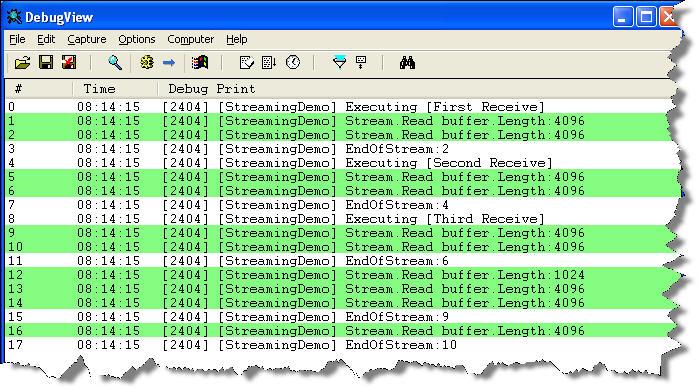
This instead is what would happen if we read through the stream in every pipeline component, instead of once. As we can see the stream is read 10 times. Now 3 times or 10 might not sound that much – the stream is however intentionally small. The point is that it is read 3 times, instead of the one. You should also keep in mind that many streams are not naturally seekable, requiring temporary storage or the likes to make them so which only adds to the resource waste.
Clean up the MsgBox
Do you sometimes end up with instances in the admin console that just wont go away? That are pending to be suspended, but doesn’t seem to ever get there. I did just the other day. To solve this I used the SQL way of terminating these messages, which always seems to do the trick. But it’s not without risk. Thats one of the many reason why there is emphasis on not running this against production. As the technet how-to describes this procedure is empty by default, so remember to add the logic by running the msgbox_cleanup_logic.sql script. There is also an issue with this procedure and tracking but there is a kb hotfix available that solves that. Presumably it’s correct from the start in R2 but I haven’t compared the two.
In short the SQL way of doing it involves running the procedure bts_CleanupMsgbox (once it contains logic). This procedure has an optional parameter named @fLeaveActSubs which by default is 1. Running it with the optional parameter set to something other then 1 will cause all subscriptions to be removed. Not something you’d typically want. A special note here is that since SQL checks for <> 0, passing in null will cause it to behave as if you sent in 0, since null compared to anything in SQL is always false. This is an issue because if you do Script As Execute in SQL the code that gets generated will default to you passing in null:
DECLARE @RC int

DECLARE @fLeaveActSubs int

— TODO: Set parameter values here.

EXECUTE @RC = [BizTalkMsgBoxDb].[dbo].[bts_CleanupMsgbox] @fLeaveActSubs
Your ports and orchestrations will still look like their running, and in a way they are, but there are no subscriptions, so you’re likely to get a routing failure. For you to get your subscriptions back you need to unenlist the send ports and then restart them. For orchestrations this isn’t enough, here you have to go the additional length of un-binding them and then re-configure and start them.
The BizTalk Core Engine’s WebLog mentions in this post that it might also be a good idea to run bts_PurgeSubscriptions directly after, but if your SQL Agent and the PurgeSubscriptionsJob is enabled (and it should be) then this will be done as part of that job.
 Be Logical - Notes from Johan Hedberg