BizTalk, Pipeline Components

Removing Xml Namespace in a pipeline component

Richard Hallgren recently blogged about how to remove Xml namespaces from Xml documents, as has Kirk Allen Evans earlier here and here. While the latter writes from a general .NET and ASP.NET perspective Richard’s post is from a BizTalk perspective and in his post he asks for alternative ways, other then the ways he is presenting, of doing it. 


The root issue is how do I turn

<ns0:Blah xmlns:ns0=”http://RemoveXmlNamespace.BTS.BlahMessage”>

into

<Blah>


First of all, let me just say that I understand namespace and I don’t think they should be removed if at all avoidable. This is not my first choice of a solution, as it probably isn’t for anyone working with BizTalk. The fact remains though that in some cases it still turns out to be necessary. My option of doing this would then be by using a pipeline component and the classes available to us from Microsoft.BizTalk.Streaming.dll. My main reason for this is performance. I would really hate to have to keep either the source document or the resulting document in memory using XmlDocument and MemoryStream like the XslTransform pipeline component sample from the BizTalk Server 2006 SDK does. I’m pretty certain that particular sample can be enhanced using XPathDocument, XslCompiledTransform and VirtualStream (to keep down the impact on memory) but it still isn’t as good if your only purpose is removing the namespace. That sample can however do many other things that my option can’t, since it does an XslTransform and this doesn’t.


So using the streaming classes in general and XmlTranslatorStream in particular we can override some of it’s methods to create a streaming xsl transformation doing what we want. The resulting code is suprisingly simple. Here is the Execute method:

public Microsoft.BizTalk.Message.Interop.IBaseMessage Execute(
IPipelineContext pContext,
Microsoft.BizTalk.Message.Interop.IBaseMessage pInMsg)
{
pInMsg.BodyPart.Data = new XmlNamespaceRemoverStream(
pInMsg.BodyPart.GetOriginalDataStream());
return pInMsg;
}

And here is the class that does the actual work (although as you can see it doesn’t really do much):

public class XmlNamespaceRemoverStream : XmlTranslatorStream
{
protected override void TranslateStartElement(
string prefix, string localName, string nsURI)
{
base.TranslateStartElement(null, localName, null);
}

protected override void TranslateAttribute()
{
if (this.m_reader.Prefix != “xmlns”)
base.TranslateAttribute();
}

public XmlNamespaceRemoverStream(Stream input)
: base(new XmlTextReader(input), Encoding.Default)
{ }
}


This sample is available for download: removexmlnamespacepipeline.zip.

BizTalk, Pipeline Components

Consuming Pipeline Component issue fixed in R2

I previously experienced an issue with a general purpose (not an assembler/disassembler) consuming pipeline component in BizTalk Server 2006. For those of you unfamilliar with the term a consuming pipeline component is just that, a component that consumes the messages and returns null to stop pipline and message processing. Having tested this on R2 I’m happy to report that this issue doesn’t exist any more.


In short, my previous issue was that in some situations a consuming pipeline component might cause an endless loop to occur within BizTalk, which in any scenario is undesirerable. The cause of this was if the pipeline threw an exception making the message become suspended on the first time around, and then returned null the second time around. Granted, not a very common scenario, so chances are good that it might not have happened to you.


This code in the execute method of the pipeline component would allow you to reproduce the error:

public IBaseMessage Execute(IPipelineContext pContext, IBaseMessage pInMsg)
{
if (pInMsg.MessageID != new Guid((string)pInMsg.Context.Read(
“InterchangeID”, “http://schemas.microsoft.com/BizTalk/2003/system-properties”)))
{
System.Diagnostics.Trace.WriteLine(“EndLess: Return null”);
return null; // resume, return null
}
else
{
System.Diagnostics.Trace.WriteLine(“Ex”);
throw new Exception(“First time in pipeline, throwing exception”);
}
return pInMsg;
}

Just stick this code in the appropriate place in the custom pipeline component, create a receive pipeline, and run a message though. First time around it will get suspended. Now go ahead and resume it. Wham! There you go – endless loop in 2006. However like I said, R2 does not display this behavior, and with any luck some hotfix or update for 2006 might contain the fix as well.


The code above also shows another small trick: How to know if a message is a resume in a receive pipeline. When a message is first received the MessageID and InterchangeID are the same, however on a receive the MessageID will be a new one, but the InterchangeID will remain the same as it was the first time.

BizTalk, Performance, Pipeline Components

Custom Pipeline Components Development Best Practices

There is much to be said about pipeline component development. Online, in the helpfiles, in books there are step by step guidance on how to build pipeline components of different types (Assembers, Dissassemblers, General Purpose etc.). I’m not going to repeat any of that. Instead I’m going to list the things that I feel are paramount to think about when doing pipeline component development, regardless of type of component and its purpose.


  1. As long as it’s possible – keep it forward only streaming. Learn and know the contents and techniques of Microsoft.BizTalk.Streaming.dll.


  2. In case you can’t keep it forward only, make sure you have a seekable stream, by wrapping it in such (ReadOnlySeekableStream), which in turns creates a VirtualStream that overflows to disk instead of filling up your memory.


  3. If the above streaming classes are not enough, and you need data from the stream, try to build your own Stream implementation and perform your logic as it is being read. Be a copycat, use Reflector.


  4. Do not load the contents of streams into memory. MemoryStream, XmlDocument, string and ReadToEnd and such is therefore generally a sign of bad practice. Keep your components impact on memory as low as possible.


  5. Don’t start new threads – doing so interferes with BizTalks internal threadpool management and thus impacts performance.


  6. Try to stay away from database calls or calls to WebServices. If you must do them, be sure to cache the response if at all possible (and reasonable). Keep the pipeline lean and mean.


  7. Test. Test early, test often, test as a unit, test in conjuction with other components in a pipeline, test logic, test performance. And when testing, don’t test on your development laptop and go “that seems to work fine”, keep it real (as real as possible).

If you think of these things you’ll be better off. There are still mistakes you can make doing BizTalk custom pipeline component develpment, and of course all general .Net coding best practices apply here as well, but if you think of these things, and can clearly motivate when and why you deviate from them, you’re one step closer to a successful component implementation.

BizTalk, Performance, Pipeline Components

Visualizing the benefit of forwardonly streaming in custom pipeline components

When doing custom pipeline component development you need to be aware of the forward-only streaming best practice. In short this means developing your pipeline components so that they do their logic either as a custom stream implementation or by reacting to the events availble to you through the Microsoft.BizTalk.Streaming.dll stream classes. Without ever keeping anything except the small stream buffer in Memory and without ever seeking the original stream. This is best practice from the perspective of resource utilization, both memory and processor cycles.


Microsoft.BizTalk.Streaming isn’t available to reference out of the box in BizTalk Server 2006, you have to get it out of the GAC to be able to use it.


Now there are a couple of good writings about streaming pipeline components and some of the peculiarities you have to think about when developing them. I won’t repeat more of it here. Instead the focus of this post is to make you aware of the difference between acting upon the stream as it is being read as opposed to reading through the stream in the execute method of the pipeline component (which is generally a bad idea, but necessary in some cases) by presenting a visual image of it for you.


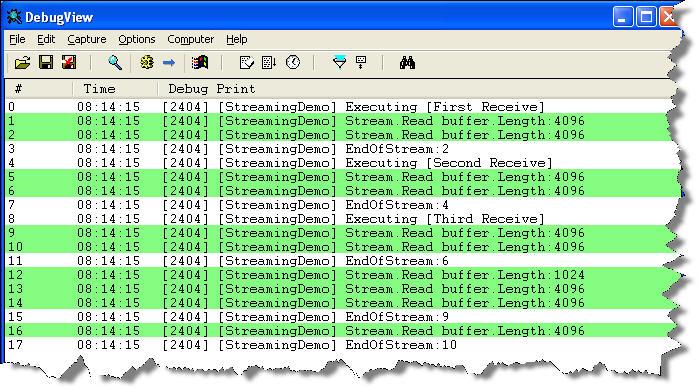
 The scenario is the following: We have three custom pipeline components in a pipeline. The images below will show the difference between reading the stream the best practice way of reacting to what you need as the stream is being read once as opposed to reading the entire stream through in each pipeline component. I’m sure everyone is familiar with DebugView, and I will use it to display the trace statements outputed by the pipeline component.


Now basically what is being done here is that in the first pipeline component a stream wrapper is created, just so that we will get events from when the original stream is being read, in all three components we then use the events of the forward only eventing stream to react to events as the stream is being read. In the image above we can see that the original stream read event is called 3 times.


 This instead is what would happen if we read through the stream in every pipeline component, instead of once. As we can see the stream is read 10 times. Now 3 times or 10 might not sound that much – the stream is however intentionally small. The point is that it is read 3 times, instead of the one. You should also keep in mind that many streams are not naturally seekable, requiring temporary storage or the likes to make them so which only adds to the resource waste.