Configuration, General, Performance

I’ve got 4GB, or do I?

When installing Windows Vista SP1 for your 32-bit operating system you may be fooled into believing that you do in fact have more than 3GB of memory and that the operating system is taking advantage of that. In pre SP1 installs only 3GB will be detected and reported. After installing SP1, since I have a compatible BIOS, Vista recognizes the fact that I have 4GB of memory installed on my motherboard. However, as far as I understand, it won’t actually use it. Here’s a quote from the Notable Changes in Vista SP1 document:


With SP1, Windows Vista will report the amount of system memory installed rather than report the amount of system memory available to the OS. Therefore 32-bit systems equipped with 4GB of RAM will report all 4GB in many places throughout the OS, such as the System Control Panel. However, this behavior is dependent on having a compatible BIOS, so not all users may notice this change.


And here is a more detailed explanation as to why there is a 3GB limit in 32-bit operating systems, regardless of it being Vista SP1 or anything else.


Although my computer is what passes for a high performance model it came pre-installed with a 32-bit operating system. Since the processor it features is an Intel Core 2 Duo processor, that’s 64-bit capable, I’m considering re-installing. I just have to read up on the impact of having a 64-bit operating system, how it impacts my applications, battery lifetime etc. Anyone want to share their experiences running 64-bit compared to 32-bit or have a link to some good up to date resource that talks about it?

BizTalk, Performance, Pipeline Components

Custom Pipeline Components Development Best Practices

There is much to be said about pipeline component development. Online, in the helpfiles, in books there are step by step guidance on how to build pipeline components of different types (Assembers, Dissassemblers, General Purpose etc.). I’m not going to repeat any of that. Instead I’m going to list the things that I feel are paramount to think about when doing pipeline component development, regardless of type of component and its purpose.


  1. As long as it’s possible – keep it forward only streaming. Learn and know the contents and techniques of Microsoft.BizTalk.Streaming.dll.


  2. In case you can’t keep it forward only, make sure you have a seekable stream, by wrapping it in such (ReadOnlySeekableStream), which in turns creates a VirtualStream that overflows to disk instead of filling up your memory.


  3. If the above streaming classes are not enough, and you need data from the stream, try to build your own Stream implementation and perform your logic as it is being read. Be a copycat, use Reflector.


  4. Do not load the contents of streams into memory. MemoryStream, XmlDocument, string and ReadToEnd and such is therefore generally a sign of bad practice. Keep your components impact on memory as low as possible.


  5. Don’t start new threads – doing so interferes with BizTalks internal threadpool management and thus impacts performance.


  6. Try to stay away from database calls or calls to WebServices. If you must do them, be sure to cache the response if at all possible (and reasonable). Keep the pipeline lean and mean.


  7. Test. Test early, test often, test as a unit, test in conjuction with other components in a pipeline, test logic, test performance. And when testing, don’t test on your development laptop and go “that seems to work fine”, keep it real (as real as possible).

If you think of these things you’ll be better off. There are still mistakes you can make doing BizTalk custom pipeline component develpment, and of course all general .Net coding best practices apply here as well, but if you think of these things, and can clearly motivate when and why you deviate from them, you’re one step closer to a successful component implementation.

BizTalk, Performance, Pipeline Components

Visualizing the benefit of forwardonly streaming in custom pipeline components

When doing custom pipeline component development you need to be aware of the forward-only streaming best practice. In short this means developing your pipeline components so that they do their logic either as a custom stream implementation or by reacting to the events availble to you through the Microsoft.BizTalk.Streaming.dll stream classes. Without ever keeping anything except the small stream buffer in Memory and without ever seeking the original stream. This is best practice from the perspective of resource utilization, both memory and processor cycles.


Microsoft.BizTalk.Streaming isn’t available to reference out of the box in BizTalk Server 2006, you have to get it out of the GAC to be able to use it.


Now there are a couple of good writings about streaming pipeline components and some of the peculiarities you have to think about when developing them. I won’t repeat more of it here. Instead the focus of this post is to make you aware of the difference between acting upon the stream as it is being read as opposed to reading through the stream in the execute method of the pipeline component (which is generally a bad idea, but necessary in some cases) by presenting a visual image of it for you.


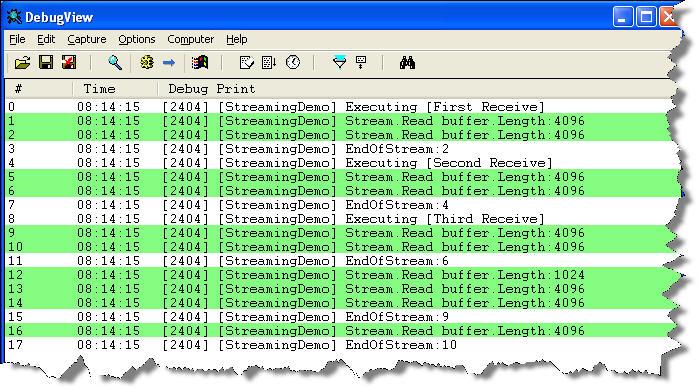
 The scenario is the following: We have three custom pipeline components in a pipeline. The images below will show the difference between reading the stream the best practice way of reacting to what you need as the stream is being read once as opposed to reading the entire stream through in each pipeline component. I’m sure everyone is familiar with DebugView, and I will use it to display the trace statements outputed by the pipeline component.


Now basically what is being done here is that in the first pipeline component a stream wrapper is created, just so that we will get events from when the original stream is being read, in all three components we then use the events of the forward only eventing stream to react to events as the stream is being read. In the image above we can see that the original stream read event is called 3 times.


 This instead is what would happen if we read through the stream in every pipeline component, instead of once. As we can see the stream is read 10 times. Now 3 times or 10 might not sound that much – the stream is however intentionally small. The point is that it is read 3 times, instead of the one. You should also keep in mind that many streams are not naturally seekable, requiring temporary storage or the likes to make them so which only adds to the resource waste.