Adapters, BizTalk

BizTalk File Adapter and Windows Fileshare Limitations

This post is based on something we experienced recently. When we activated some more file receive locations against a machine to which we previously had a bunch of receive locations configured, after a while they began to become disabled, one after the other (but not all). The message in the eventlog states:

The receive location “Xxx Receive Location” with URL “\servershare*.*” is shutting down.
Details:”The FILE receive location \servershare*.* exhausted the network retry attempts.”

The network was up, security settings was unaltered and besides – some of the receive locations still worked. Curious.


Turns out, it’s as much a Windows Server 2003 (and other OS’es) issue as it is a BizTalk issue, and you can just as likely get it in another type of application as in a BizTalk application. The problem is based upon limitations in the number of open requests or commands between two machines. There are limits to both how many connections you are allowed to another computer and how many connection you allow another computer to make to you (ie both outgoing and incomming).


The reason this is more likely to occur in a BizTalk application is that when listening on a share BizTalk registers for change events, and for each receive location one such event will be register. The default limit for the number of active commands is 50. Luckily there is a knowledgebase article (ID:810886) describing how to get around this issue (ie raise the limit). Also for those of you reading the Pro BizTalk 2006 book, there is a section in the book called File Tuning (pages 445-447) that talks about this and also highlights some other issues with the file adapter. The book suggest setting the values to 2048 instead, but doesn’t really say why. The highest possible value is 65000. My suggestion is to set it to a value where you are sure you have covered the number of active receive locations and have room for additional connections used by send port and other type of access using fileshares – only you know what that is. Also for a BizTalk environment, do this to both the BizTalk server and the fileserver you are connecting to. 


Below is the summary of what the knowledgebase describes, in registry file format (valid for Windows 2003 Server machines):

Windows Registry Editor Version 5.00

[HKEY_LOCAL_MACHINESYSTEMCurrentControlSetServiceslanmanserverparameters]
“MaxMpxCt”=dword:00002048

[HKEY_LOCAL_MACHINESYSTEMCurrentControlSetServiceslanmanworkstationparameters]
“MaxCmds”=dword:00002048

BizTalk, ESB Guidance

ESB Guidance Exception Management and Pro BizTalk 2006

The Exception Management part of the ESB Guidance was first introduced (to me at least) through the book Pro BizTalk 2006 by George Dunphy and Ahmed Metwally. I didn’t immediately make the connection, but when looking at the ESB Guidance solution something felt familiar and as it turns out I had seen it before. So for those of you that are wondering what the ESB Guidance holds as far as Exception Handling and Management goes – but haven’t had the time to sink your teeth into it yet – if you have read and understood the Exception Management scenario within Pro BizTalk 2006 (pages 225-250), you understand the basics of what the ESB Guidance Exception Management does and the goals of the implementation. Some of the text and images in the book, when compared to the ESB Guidance documentation, is exactly the same. The ESB Guidance however contains more than is covered in the book – in fact, in addition to the part that the book describes, it also contains an implementation for the parts that the book does not describe, but mentions as design goals for a complete Exception Management scenario built upon BizTalk and the Messaging and Orchestration sub-systems.

BizTalk, Maintenance, SQL

How-to: Use BizTalkMgmtDb to get referenced assemblies

Sometimes when you are trying to remove an assembly from within the Administration Console you get and error saying that it’s being used. Most often you’ll get information on where it’s being used at the same time, but not always. These queries are for those times. With the help of these queries, and the knowledge gained from working with these tables you could also lookup things like assemblies that aren’t being used or on which ports a particular map or pipeline is used – information that is not easily accesible through the Administration Console.


Get Assemblies referenced by Maps on ReceivePorts

Select    ass.nvcName as Assembly,
itm.Name as Map,
rcv.nvcName as ReceivePort
from bts_receiveport_transform tr
join bt_MapSpec map on tr.uidTransformGUID = map.id
join bts_item itm on map.itemid = itm.id
join bts_assembly ass on map.assemblyid = ass.nID
join bts_receiveport rcv on rcv.nID = tr.nReceivePortID
order by Assembly, Map, ReceivePort

Get Assemblies referenced by Maps on SendPorts

Select    ass.nvcName as Assembly,
itm.Name as Map,
snd.nvcName as SendPort
from bts_sendport_transform tr
join bt_MapSpec map on tr.uidTransformGUID = map.id
join bts_item itm on map.itemid = itm.id
join bts_assembly ass on map.assemblyid = ass.nID
join bts_sendport snd on snd.nID = tr.nSendPortID
order by Assembly, Map, SendPort

Get Assemblies referenced by Pipelines on ReceiveLocations

select    ass.nvcName as Assembly,
pipe.Name as Pipeline,
loc.Name as ReceiveLocation
from adm_receiveLocation loc
join bts_pipeline pipe on pipe.ID = loc.ReceivePipelineId
join bts_assembly ass on ass.nID = nAssemblyID

Get Assemblies referenced by Pipelines on SendPorts

select    ass.nvcName as Assembly,
pipe.Name as Pipeline,
snd.nvcName as SendPort
from bts_sendport snd
join bts_pipeline pipe on pipe.ID = snd.nSendPipelineId
join bts_assembly ass on ass.nID = nAssemblyID

BizTalk, Debugging

How-to: Find the host that BTSNTSVC.exe belongs to

Often times when you are looking at your environment from a performance perspective – perhaps you are testing or perhaps you are only trying to find out which host is responsible for the process running at 100% for 5 minutes – you need to know which BizTalk process has been started by what host. Another common reason is to know which service to attach to when debugging. There are a couple of ways to know this, and which one is best is both preference and related to environment and scenario. Regardless of scenario I prefer to start as few, quick and small applications as possible. I’ve put what I consider the best options in the order which is my preference.


  1. Use the tasklist command in a command window: tasklist /svc /fi “imagename eq btsntsvc.exe”


  2. View the BizTalk:Messaging ID Process perfomance counter in a command window: typeperf “BizTalk:Messaging(*)ID Process” -sc 1


  3. If you would like a more graphical interface there are tools that wraps the same data up in a prettier format, such as PerfMon and Windows SysInternals Process Monitor.


  4. I’m sure there are several more ways to do this… as I mentioned, it’s a matter or preference.

If you want to add this as an External Tool in Visual Studio to have it easily accessible for when you want to attach a host process to debug you can add it like this:


Of course, you could just always attach to all hosts. If you want to do this or not depends on the number of hosts you have running among other things, but why do so if you don’t need to?

BAM, BizTalk

Enabling the BAM Excel Add-In for Excel 2007

Much has changed in the GUI from Office 2003 and earlier version to Office 2007. For many, menu option are hard to locate. This post is meant to be a short pictorial guide to one way of enabling the BizTalk Server 2006 BAM Add-In for Excel 2007. I’ll assume that BAM and Excel are already installed.


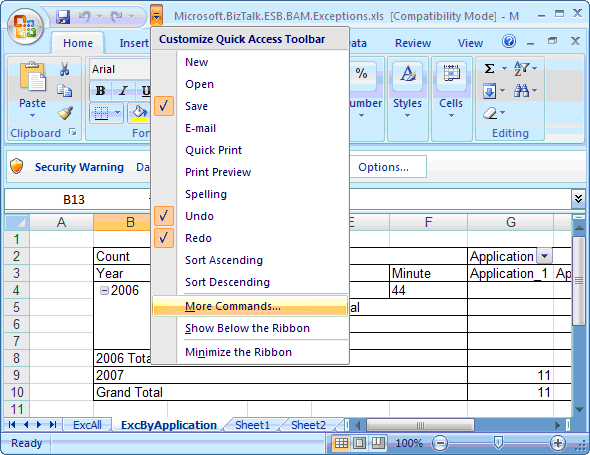
What we need to do is to add it to the ribbon so we can access it. We do that by going to More Commands…


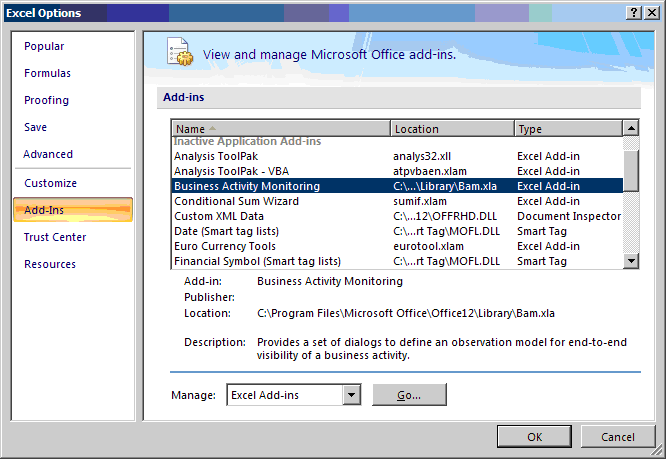
This will open the Excel options dialog box and from there you can select Add-Ins. You should see Business Activity Monitoring listed.


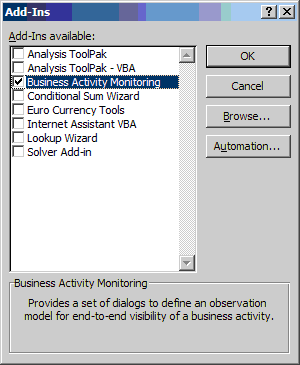
Next, select Manage: Excel Add-Ins, and press Go… This will bring up a familiar dialog where you need to check the Business Activity Monitoring Add-In.


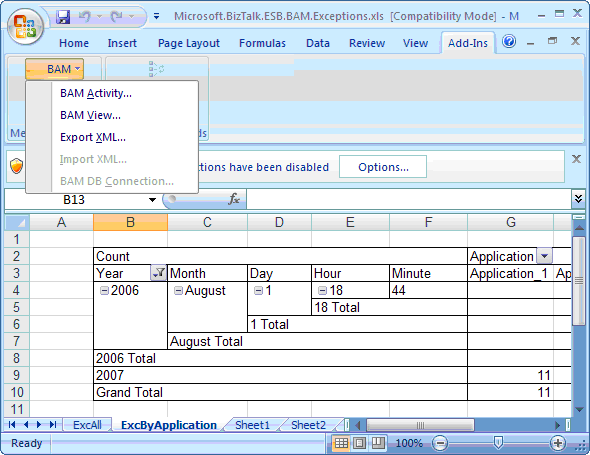
Having done this the BAM Add-In will now be accessible through the ribbon and you can edit your BAM Activities and Views.